
What are collections
Overview
Collections groups screens, actions, journeys, and sessions around a theme so you can view related objects in one place. This article covers how to view, create, manage, and filter collections.
Viewing collections
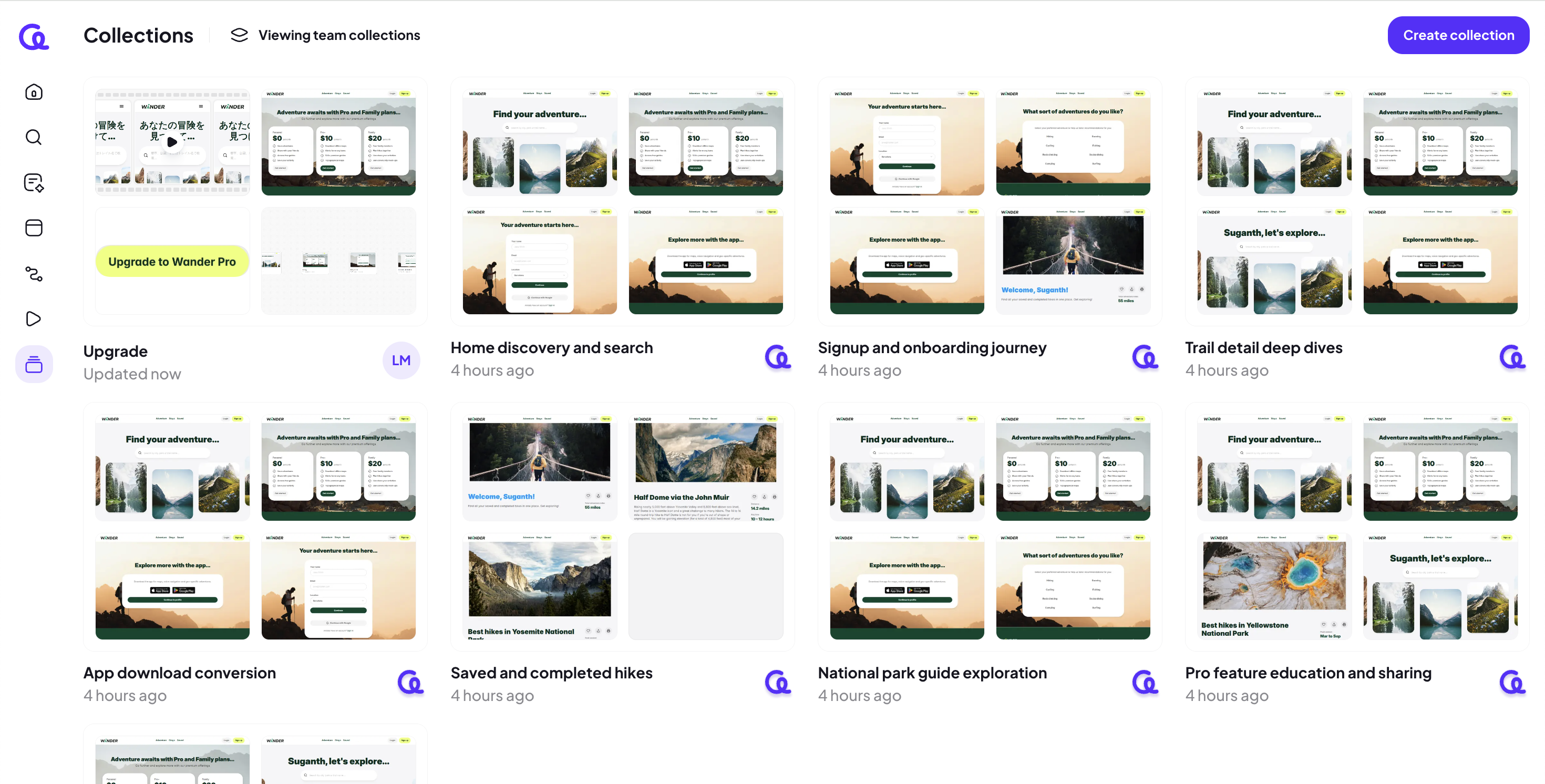
Click the Collections icon in the left navigation. The Collections page shows a grid of collection cards.
Each card shows a preview of included objects, the collection name, and a relative timestamp.
An icon on the card indicates who created the collection (the Adora icon indicates a collection Adora created).
Switch between team and private collections
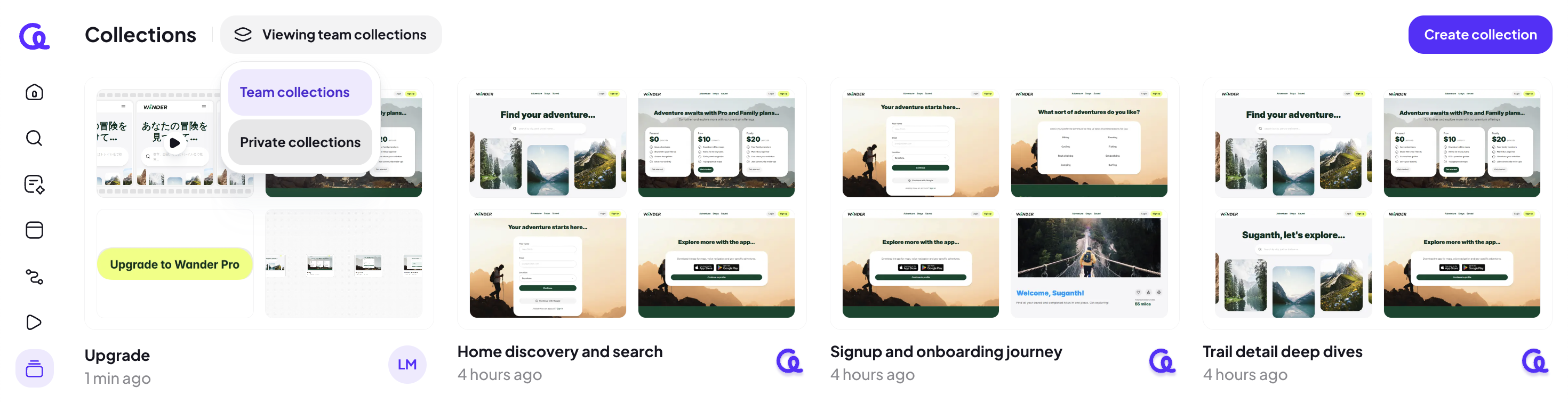
At the top of the Collections page, click the collections dropdown (it displays the current view, such as Viewing team collections). Select Team collections or Private collections. The grid updates to show the collections for the selected view.
Create a collection
Create a collection from either place:
On the Collections page, click Create collection.
In canvas view, click Create collection from the collection dropdown.
Adora opens a new collection with:
The default name Untitled collection
The default visibility Private
An empty state with a search field for adding items
Add items to a collection
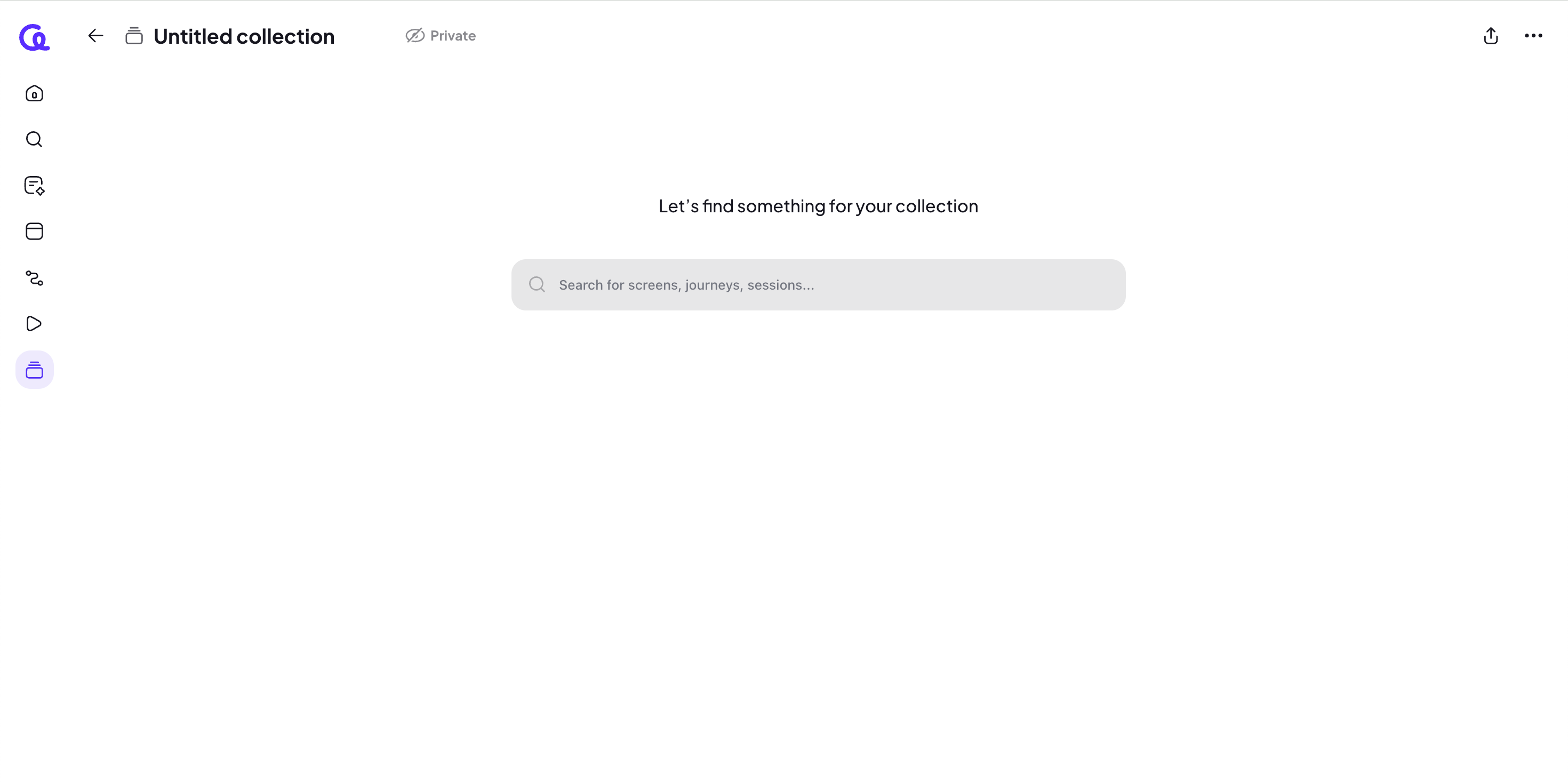
In an empty collection, click the search field (Search for screens, journeys, sessions…).
A picker modal opens with:
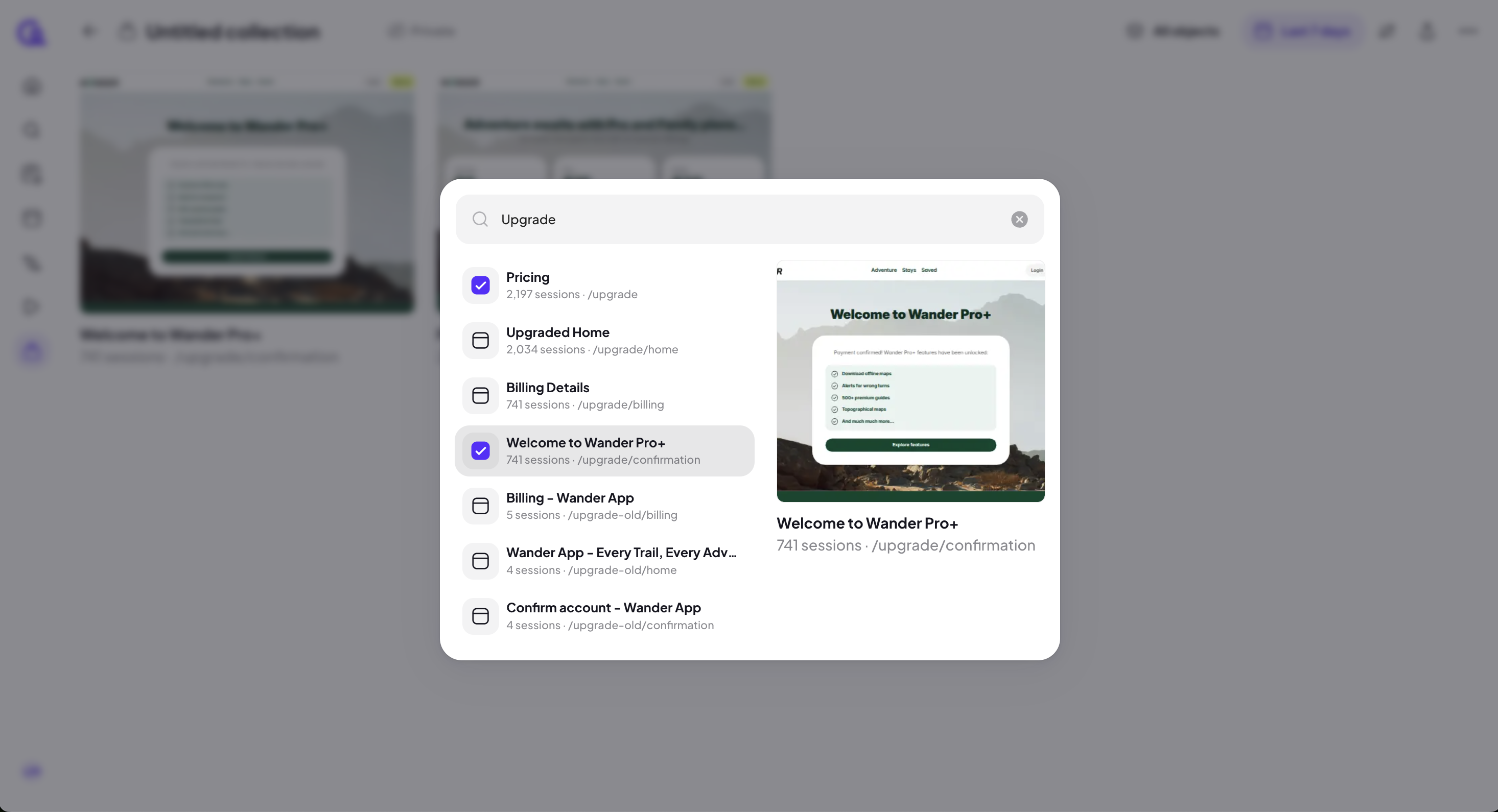
A search field
A results list (left)
A preview/details panel for the selected result (right). To add an item, click the + next to the item in the results list.
Added items appear in the collection behind the modal.
Added items show a checkmark in the results list. Repeat to add multiple items (screens, actions, journeys, or sessions).
Rename a collection
Click the collection title in the header (for example, Untitled collection), then enter the new name.
Filter what you see in a collection
Use the toolbar in the top-right:
All objects: Filter the collection by object type (screens, actions, journeys, or sessions) or show All objects.
Last 7 days: Change the date range for what displays in the collection.
Properties (sliders icon): Filter the collection using properties.
Share a collection or make it private
Click the Share icon, then change visibility:
Private: Only you see the collection.
Shared: Your team members in Adora see the collection.
Add more items or delete a collection
Click … (ellipsis), then select Add more to collection or Delete collection.