
Using the journey map
Overview
A Journey Map is the canvas where you build, compare, and organize Journeys.
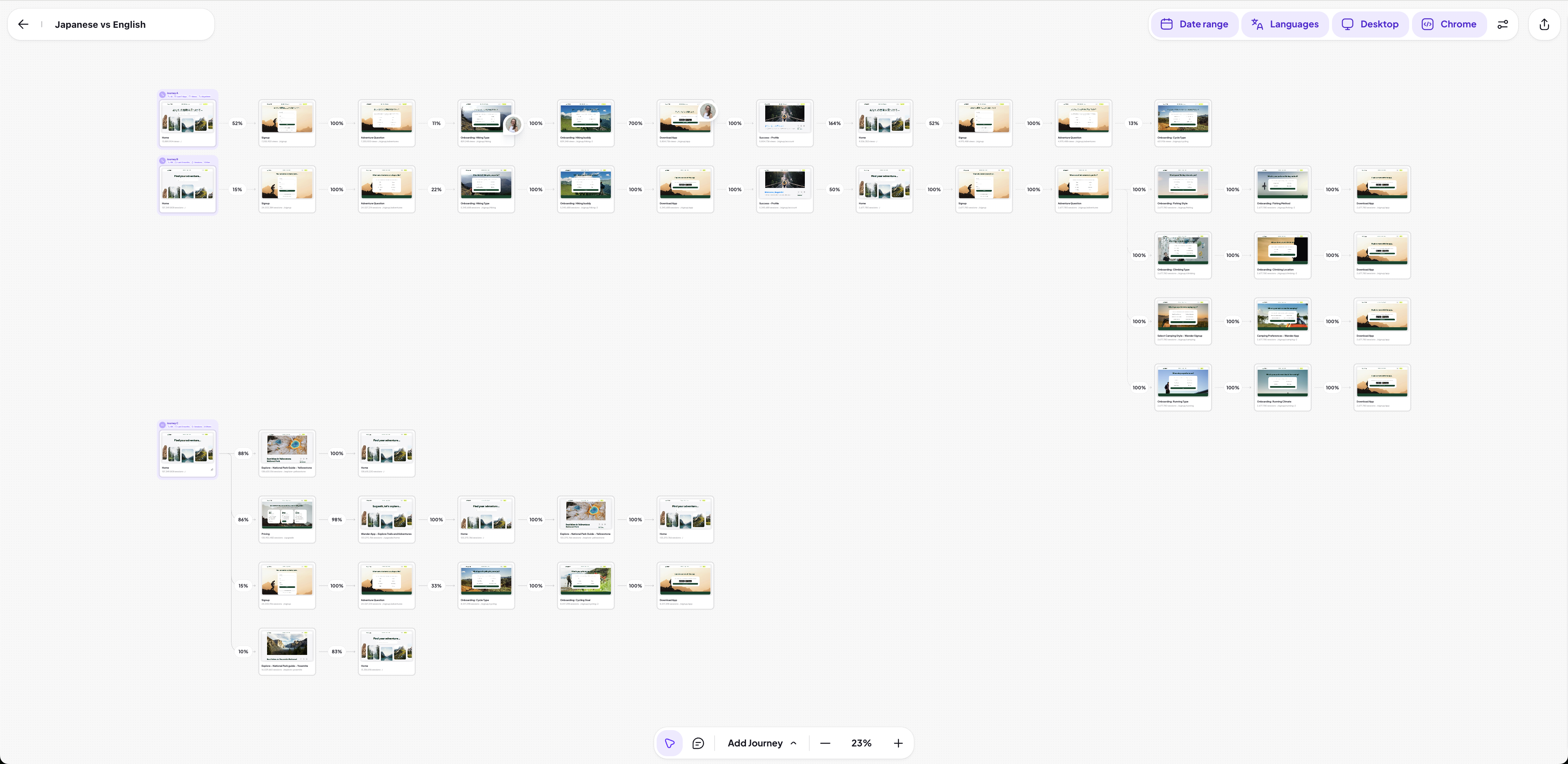
Key features:
Add multiple Journeys to one map
Mix Journey types
See conversion on different paths
Click nodes to open screen details
Managing multiple journeys
You can duplicate Journeys, compare versions, or use different settings for each.
Properties on journeys
Global filters
Applied at the map level. Affect all Journeys.
Useful for:
High-level audience comparisons
Broad user segmentation
Journey-level filters
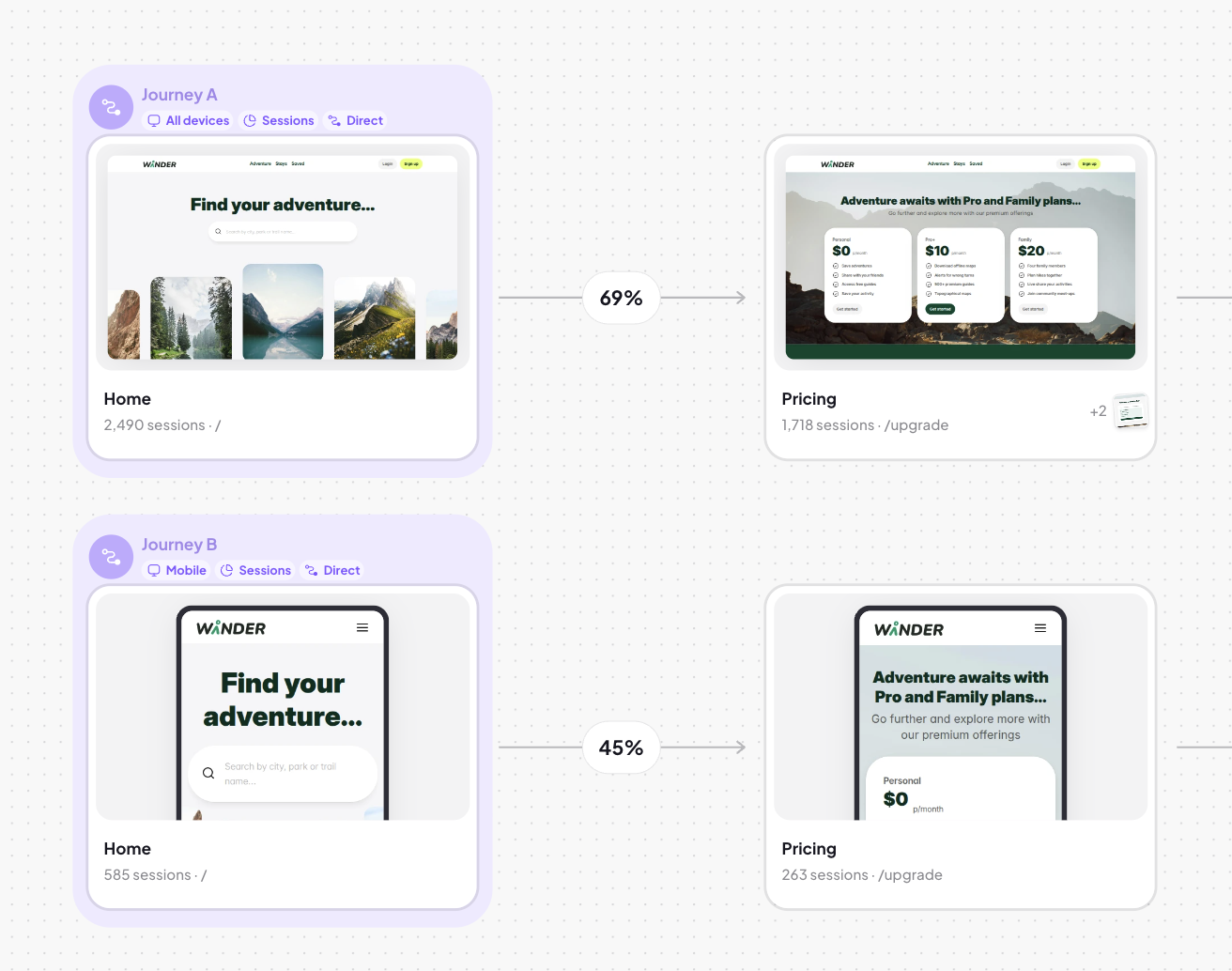
Clicking the purple background, on the first screen of a journey, will isolate that journey to apply the property filters to. In the example above, you can see that Journey A is for All devices and Journey B is for Mobile.
Useful for:
Comparing two versions of the same Journey
Narrowing analysis to a specific user group
Examples of multiple journey comparisons to make
New vs old product flow
To measure the difference between a new onboarding journey (or any older product journey) to an old one you would:
Create a journey for your new flow (custom journey could work best if its linear)
Click the purple starting node of the journey and then click duplicate or cmd + d.
On the duplicated journey, click the purple starting node and change the time frame to before the new experience was released.
Confirm the changes with 'Update for everyone'.
You will now be able to see the same journey but across two different time ranges.
Note: If you've changed the URLs that the new experience appears on, you're duplicated journey might have empty nodes. In this scenario, it would be best to create another custom journey.
Comparing the conversion rates between different regions
To measure how a journey is performing in different regions you would:
Create a journey for your flow (the journey type will depend on what you want to learn).
Click the purple starting node of the journey and then click duplicate or cmd + d.
On the duplicated journey, click the purple starting node and change the region to the one you are interested in.
Confirm the changes with 'Update for everyone'.
You will now be able to see the same journey but across two different regions.
Comparing the conversion rates between different user groups
This comparison will work if you are using a custom properties for user groups. You can learn more in our Properties documentation. To compare the user groups, you would:
Create a journey for your flow (the journey type will depend on what you want to learn).
Click the purple starting node of the journey and then click duplicate or cmd + d.
On the duplicated journey, click the purple starting node and change the property value to the one you are interested in.
Confirm the changes with 'Update for everyone'.
You will now be able to see the same journey but across different user groups.