
Insights page
Overview
Insights shows a prioritized list of problems and opportunities clustered from related signals. It updates as new signals arrive and lets you review details, evidence, recommendations, and impacted screens.
Location
From the home screen, use the left-hand side panel and click the Insights icon.
Access
Everyone can access Insights.
Filters
The top filter bar matches the standard property filters used elsewhere in Adora. Applying filters narrows the Insights list and the detail view you open from it.
Insights list (left panel)
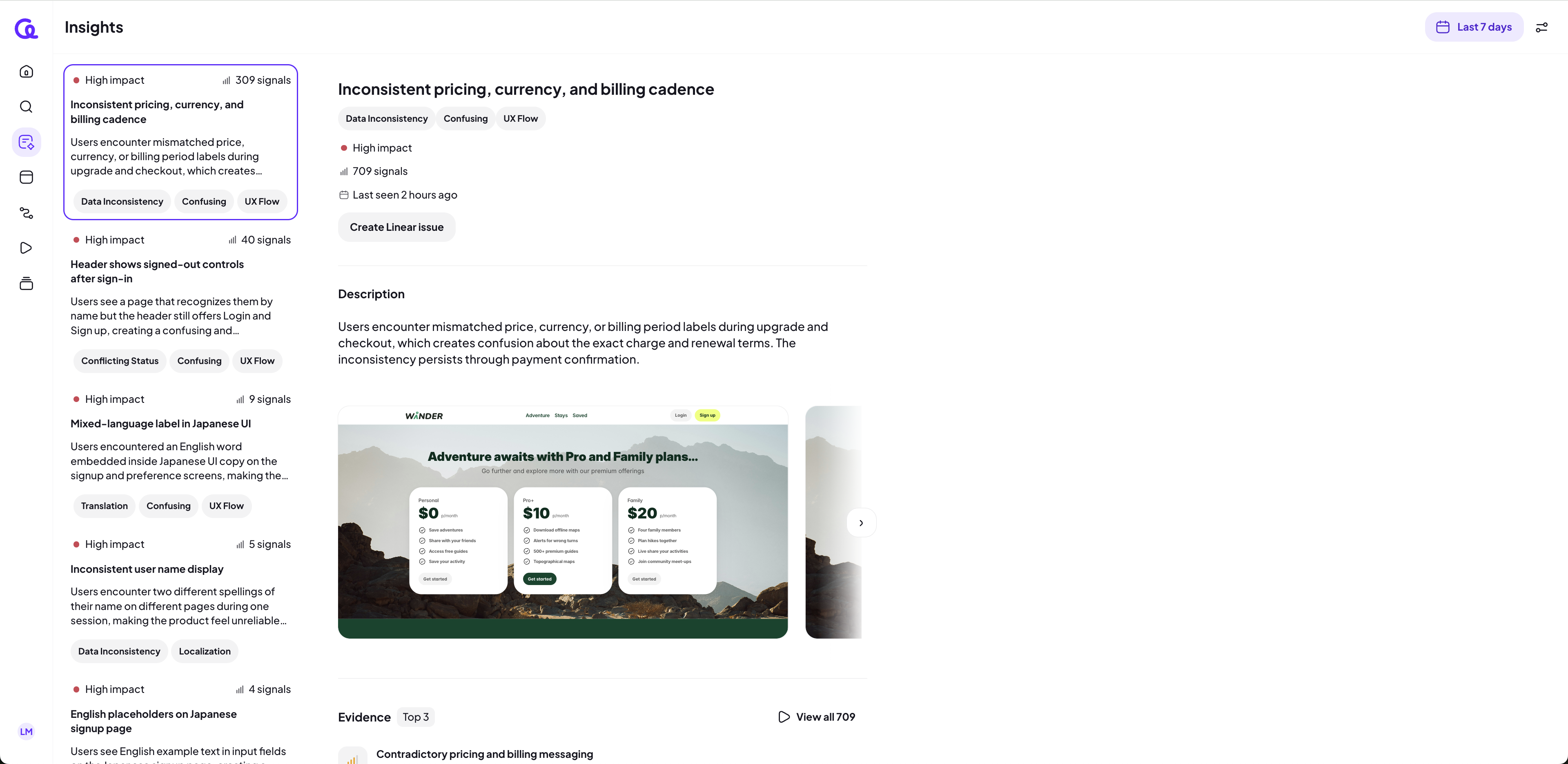
Shows Insights sorted by impact, then by signals count in descending order.
Each list item displays, in order: Title, Description (one-line preview), Signal count, Impact level (High Impact, Medium Impact, or Low Impact), and Tags (non-clickable, not used for filtering).
Clicking a list item opens its details in the right panel.
Empty state when no Insights exist: “No insights yet”.
Insight details (right panel)
Displays the selected Insight with header metadata, actions, and sections.
Header shows: Impact chip (High Impact, Medium Impact, or Low Impact), Signals count (dynamic), and Last seen as a relative time (for example, 2 days ago, 5 hours ago).
Create Linear Issue opens a new tab in Linear prefilled with the Insight title, description, a link back to the Insight in Adora, and linked example sessions.
Description
Summarizes the Insight’s scope and context.
Evidence
Lists the signals that contribute to the Insight and includes screenshots you can open to the exact session moment.
Each evidence item shows: a title describing the signal, signal strength, and a relative timestamp of when the signal was observed.
Click an evidence item (or its screenshot) to open the source session at that moment.
Recommendations
Shows suggested next steps as dot points.
What’s Impacted?
Displays thumbnails of impacted screens.
Click a thumbnail to navigate to that screen.